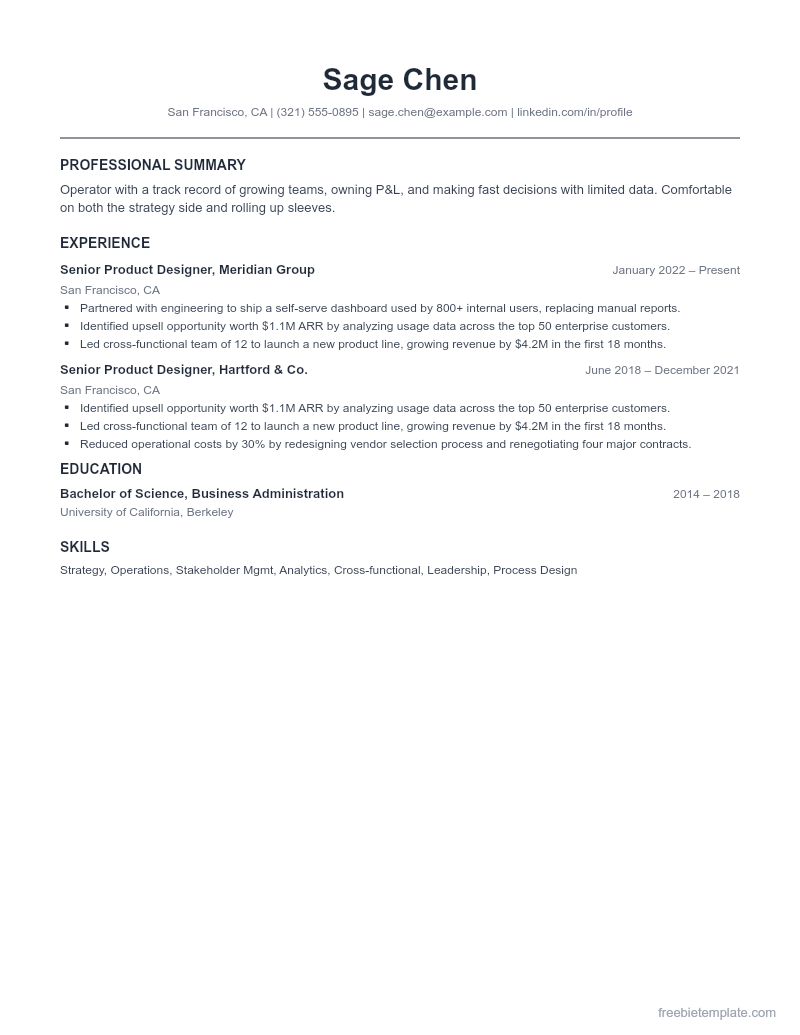
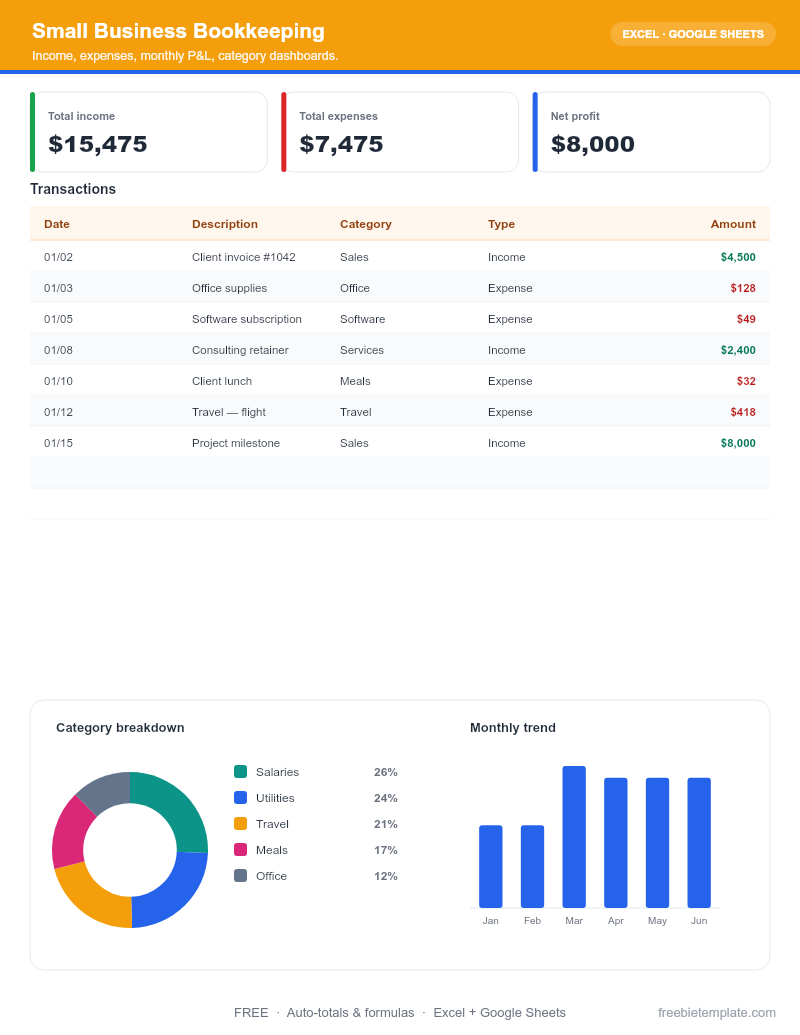
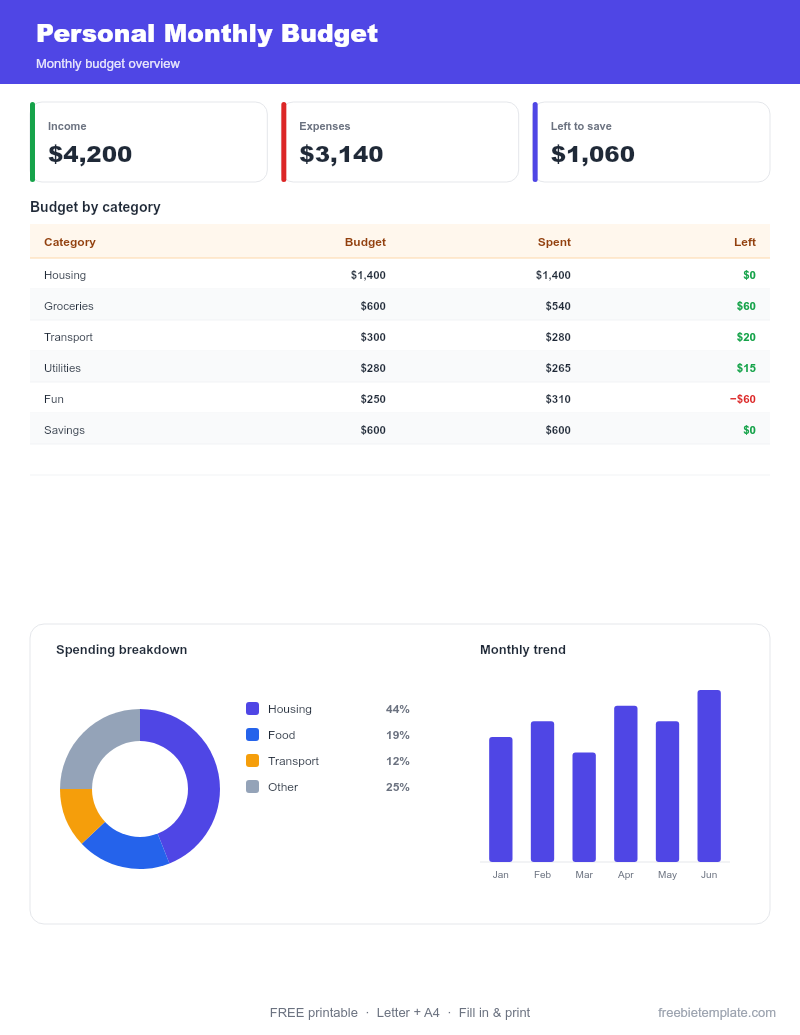
How to Edit a Template in Google Docs or Sheets
Every template here has a one-click “Open in Google Docs/Sheets” option. It copies the file into your own Google Drive so you can edit it in the browser for free — nothing to install. Here is the whole process, start to finish.
Step 1 — Click “Make a copy”
On any template page, click the “Open in Google Docs (make a copy)” or “Open in Google Sheets (make a copy)” button. Google will open a copy prompt.
If you are not signed in to a Google account, you will be asked to sign in first. A free personal Gmail account works fine.
Step 2 — Confirm the copy
Click the blue “Make a copy” button. Google creates a private copy in your own Drive — the original template stays untouched, and your edits are yours alone.
The copy lands in “My Drive” by default. You can move it into a folder later if you like.
Step 3 — Replace the placeholder text
Click into any field and type over the sample text. In spreadsheets, the formulas (totals, subtotals, variance) update automatically as you fill in numbers — leave the formula cells alone and just enter your data.
Change fonts, colors, and logos from the toolbar exactly as you would in any document.
Step 4 — Export to PDF when you’re done
To send or print, use File → Download → PDF Document. That gives you a clean, locked version to attach to an email or hand to a client.
You can also keep editing the Google copy forever — it auto-saves every change.
Disclaimer. This guide and our templates are for general personal and informational use, provided as-is. For financial, medical, or legal decisions, consult a qualified professional. Read our editorial policy.